Measuring memory usage in Windows 7
Historically, measuring the amount of memory in use by a Windows system has been a somewhat confusing endeavor. The labels on various readouts in Task Manager, among other places, were often either poorly named or simply misunderstood. I’ll tackle a prime example of this, the “commit” indicator, later in this post. But first, let’s look at a simple way to measure the amount of physical memory in use on your system.
In Windows 7, the folks building the Task Manager performance tab tried to make it a little easier to understand the usage of physical memory on your system. The most interesting bits are here:

What do these values tell us?
– We are looking at a machine with 4GB of physical memory installed.
– 71% of that physical memory is currently in use by applications and the system.
– That leaves 29% of memory “available”, despite the indication that only 16MB of physical memory is totally “free.”
Here’s a description of the four labels, from the bottom:
Free — This one is quite simple. This memory has nothing at all in it. It’s not being used and it contains nothing but 0s.
Available — This numbers includes all physical memory which is immediately available for use by applications. It wholly includes the Free number, but also includes most of the Cached number. Specifically, it includes pages on what is called the “standby list.” These are pages holding cached data which can be discarded, allowing the page to be zeroed and given to an application to use.
Cached — Here things get a little more confusing. This number does not include the Free portion of memory. And yet in the screenshot above you can see that it is larger than the Available area of memory. That’s because Cached includes cache pages on both the “standby list” and what is called the “modified list.” Cache pages on the modified list have been altered in memory. No process has specifically asked for this data to be in memory, it is merely there as a consequence of caching. Therefore it can be written to disk at any time (not to the page file, but to its original file location) and reused. However, since this involves I/O, it is not considered to be “Available” memory.
Total — This is the total amount of physical memory available to Windows.
Now, what’s missing from this list? Perhaps, a measurement of “in use” memory. Task Manager tells you this in the form of a percentage of Total memory, in the lower right-hand corner of the screenshot above. 71%, in this case. But how would you calculate this number yourself? The formula is quite simple:
Total — Available = Physical memory in use (including modified cache pages).
If you plug in the values from my screenshot above, you’ll get:
4026MB — 1150MB = 2876MB
This matches up with the 71% calculation. 4026 * .71 = 2858.46MB.
Recall that this number includes the modified cache pages, which themselves may not be relevant if you are trying to calculate the memory “footprint” of all running applications and the OS. To get that number, the following formula should work
Total — (Cached + Free) = Physical memory in use (excluding all cache data).
On the example system above, this means:
4026MB — (1184 + 16) = 2826MB
By looking at the difference between these two results, you can see that my laptop currently has 50MB worth of disk cache memory pages on the modified list.
So what is “commit?”
Earlier I said that measuring physical memory usage has been tricky in the past, and that the labels used in Windows haven’t necessarily helped matters. For example, in Windows Vista’s Task Manager there is a readout called “page file” which shows two numbers (i.e 400MB / 2000MB). You might guess that the first number indicates how much page file is in use, and the second number indicates the amount of disk space allocated for use — or perhaps some sort of maximum which could be allocated for that purpose.
You would be wrong. Even if you disabled page files on each of your drives, you would still see two non-zero numbers there. The latter of which would be the exact size of your installed physical RAM (minus any unavailable to the OS because of video cards, 32-bit limitations, etc). Unfortunately, the label “page file” didn’t mean what people thought it meant. To be honest, I’m not quite sure why that label was chosen. I would have called it something else.
In Windows 7, that label changed to “Commit.” This is a better name because it doesn’t lend itself as easily to misinterpretation. However, it’s still not readily apparent to most people what “commit” actually means. Essentially, it is this:
The total amount of virtual memory which Windows has promised could be backed by either physical memory or the page file.
An important word there is “could.” Windows establishes a “commit limit” based on your available physical memory and page file size(s). When a section of virtual memory is marked as “commit” — Windows counts it against that commit limit regardless of whether it’s actually being used. The idea is that Windows is promising, or “committing,” to providing a place to store data at these addresses. For example, an application can call VirtualAlloc with MEM_COMMIT for 4MB but only actually write 2MB of data to it. This will likely result in 2MB of physical memory being used. The other 2MB will never use any physical memory unless the process reads from or writes to it. It is still charged against the commit limit, because Windows has made a guarantee that the application can write to that space if it wants. Note that Windows has not promised 4MB of physical memory, however. So when the process writes there, it may use physical memory or it may use the page file.
This is a great example of why disabling your page file is a bad idea. If you don’t have one, Windows will be forced to back all commits with physical memory, even committed pages which are never used!
Further, processes may be charged against the commit limit for other things. For example, if you create a view of a file mapping with the FILE_MAP_COPY flag (indicating you want Copy-On-Write behavior for writes to the file view), the entire size of the mapped view will be charged as Commit… even though you haven’t used any physical memory or page file yet. I wrote a simple scratch program which demonstrates this:
int wmain(int cArgs, PWSTR rgArgs[])
{
if (cArgs == 2)
     {
         HANDLE hFile;
         hFile = CreateFile(rgArgs[1], GENERIC_READ | GENERIC_WRITE, 0, nullptr, OPEN_EXISTING, FILE_ATTRIBUTE_NORMAL, nullptr);
         if (hFile != INVALID_HANDLE_VALUE)
         {
             HANDLE hMapping;
             hMapping = CreateFileMapping(hFile,
nullptr, PAGE_READWRITE, 0, 0, nullptr);
             if (hMapping != nullptr)
             {
                 void *pMapping = MapViewOfFile(hMapping, FILE_MAP_COPY, 0, 0, 0);
                if (pMapping != nullptr)
                 {
                     wprintf(L"File mapped successfully.  Press any key to exit and unmap.");
                     getwchar();
                     UnmapViewOfFile(pMapping);
                 }
                 CloseHandle(hMapping);
             }
             CloseHandle(hFile);
         }
     }
    return 0;
}
Before running this program, let’s take a look at Task Manager again.
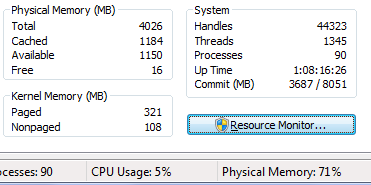
Now, if I run this scratch program and pass it the path to my Visual Studio 2010 Beta 2 ISO image (a 2.3GB file), the Task Manager readout changes to:
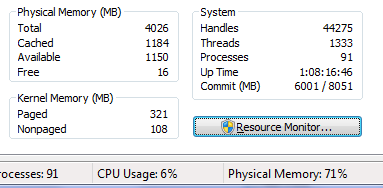
Notice how my physical memory usage is unchanged, despite the fact that Commit has now increased by the full 2.3GB of that file.
In fact, my commit value is now 6GB, even though I have only 4GB of physical memory and less than 3GB in use.
Note: It is not common for applications to commit enormous file mappings in this way. This is merely a demonstration of Commit and Used Physical Memory being distinctly different values.
Trackbacks & Pingbacks
Comments are closed.
Brandon – like the others have said … thanks for a great article.
I’m currently trying to understand why a 3MB Excel 2010 spread sheet comes up with “Excel cannot complete this task with available resources” error since upgrading from WinXP to Win7 64bit.
The failure occurs when the TM counters show:
Total=3979
Cached=830
Available=918
Free=90
Physical Memory: 76%
Paged=203
Nonpaged=54
Handles=27559
Commit = 3544 / 7956
Armed with your excellent explanation of the various counters (in conjunction with other Perfmon counters) hopefully I can determine what the heck is happening.
An absolutely fantastic article. Thanks. I too had been searching on the web for a while and nothing came close to this. I like your articles exhaustive coverage of the subject (going into the history as well) and its ability to anticipate my next questions
Great post, best explanation I’ve ever seen for all these categories.
Thanks for takin the time!
What a shame all this is bullshit! No pagefile is bad, nope don’t think so. HDD is slower than RAM, so why use HDD if RAM is there and in mass amounts? No point… And free memory does not matter, you sir are speaking bull shit! So when I have 1500MB available that means I do not need more ram to do more tasks? No thats a lie too, I struggle to do basic chrome browsing but when I popped in 4GB more, I now have LOTS of FREE RAM and everything runs sweet. So your whole story is lies and must not be taken with any credibilty by anyone. If you are low on RAM, get an upgrade like I did, if you want a faster PC, get an upgrade. It is so simple but people never learn. The slowness can also be caused by malware or other unwanted software also, best to look into that before spending money on anything.
Steven – Perhaps you should read the entire post before replying next time. This would save me further /facepalms.
Everything in the post is 100% accurate. As a former senior developer on the Windows team I’m well versed in the subject.
I think you confused the notion that “free RAM is wasted RAM” with some idea that “more RAM isn’t useful.” Obviously, you are confused as I never once suggested the latter. If you didn’t have enough to do your tasks without paging, then obviously you did not have any free RAM, otherwise it wouldn’t have been free! So of course upgrading it helps you.
If you used to be exceeding your RAM availability by 1-2GB, and then you added 4GB, you shouldn’t be surprised when you have some that’s free! Of course, as I described in the post, Windows will try to make use of most of that for the disk cache and superfetch (because free RAM is wasted RAM!). But eventually you’ll reach a point where it just doesn’t have anything useful to put there sometimes, or where it reaches the maximum amount of I/O it wants to do to preemptively populate things.
No page file is bad. I explained in great detail the reasons why. You haven’t disputed any of them. So go read the post, and perhaps learn something!
Brandon – Great article!
Virtual memory is an integral part of a modern computer architecture, and no one could deny its benefit.
When I left my pagefile on auto, Win7 would allocate 16 gb to my SSD for viritual memory space, and then another 8 gb+ for hibernate mode. That is half of my drive! I hate that Microsoft prefetches/caches everything. I cannot open internet explorer after my “free” memory is under 300 mb from a possible 16 Gb! I just disabled superfetch and will restart the PC. It is very troublesome to watch my available ram go to 0 and NOT release it, ever.
Great stuff….Now I now why my computer is so slow……
Brandon – This was an incredibly informative article. The entire idea of understanding how memory is used is a challenge. I wonder – might this entire discussion of how Windows 7 is used be essentially the same in Windows 10 or have there been fundamental changes to memory management with this overhaul?
“Now, what’s missing from this list? Perhaps, a measurement of “in use†memory. ”
i dont accept this, as it is shown clearly in the form of a graph just above these things
What language is that code demonstrating FILE_MAP_COPY? Is there any thing missing needed to compile like include or require lines? Any information is appreciated. Thanks Brandon
Hi Brandon,
I have a question regarding the “Free” value (lower of the four):
When it goes down to zero, Google Chrome tends to crash (Firefox can crash as well, but less frequently) and I’m not the only one, who noticed that.
Crash happens despite the “Available” is about 800MB – 1GB.
Maybe you know why that may happen and most importantly, what can be done to prevent such crashes?
Thanks,
Dmitri
@Brendan – That’s just standard C++. You’ll need some standard header includes at the top (i.e. windows.h and maybe a Unicode one) but otherwise that should be all that’s needed.
Thanks very much Brandon. I’ll try that
A good article – but one that still leaves me with a question – what of the available data tells me whether more RAM would be useful? I suspect the answer is the hard faults / sec number. You do not mention this, but I believe it records the number of times the memory manager cannot satisfy clients from physical RAM, and has to use the disk (page file). Or is the % used RAM a better measure?
My answer to why no page file is bad follows. For simplicities sake the system is assumed to use a steady 2G
Suppose we have 8G of RAM (physical memory) – just to make this example concrete. An application – app1 – requests 5G of RAM and windows Commits that. If there is no page file all of this Commit(ment) is to provide RAM – leaving just 1G available for other applications. At this time app1 is only actually using (say) 1G.
Now app2 requests 4G. Windows cannot supply this since it has only 1G RAM uncommitted, and has no page file, so app2 is stalled.
Now consider the same situation but with a 20G page file.
App 1 asks for 5G. Windows Commits to this 5G and allocates 2G of RAM and 3G of page file. Note that, as before, app1 is only using 1G so it is running fast in RAM. App2 now asks for 4G. windows allocates it 2G of RAM and 2G of page file. Suppose App2 actually uses 2G. We now have 5G of RAM used, 2G for the system, 1G for app1 and 2G for app2.
the important point to notice here is the difference between what an app needs committed to it and what it actually uses. As a result having a page file to absorb potentially used (but committed) memory it is often the case that more of the actually used memory can be accommodated in RAM. The page file is just there is case all the Commitments are actually called in – and only then do things slow down – but can at least run!
Thank you for this great article.
I have one question, why after running this example code at end, the commited memory does not go back to previous value? You’ve called unmap and released handles.
Will running it again eat some more from commited limit?